Your data is processed and collected by Lepape, which acts as the data controller, in accordance with the French Data Protection Act and the RGPD. For more information on the processing of your personal data, you can consult our
Privacy policy.
Forgot Password
How to use your Garmin watch : Guide & Tips
Starting up and configuring your Garmin watch
To answer the question of how to use your Garmin watch for the first time, follow these simple steps
Charging and switching on the watch
Before you start, make sure the watch is fully charged using the supplied cable. Then press and hold the startbutton to switch on the device.
Download and use the Garmin Connect application
Download the Garmin Connect application to synchronize your data and take full advantage of your watch’s functions. Then choose an activity mode(running, cycling, etc.) and start using your watch.
Configure and customize settings
Follow the on-screen instructions to choose your language, connect your watch to your smartphone via Bluetooth, and set up a Garmin account if necessary. Once this is done, customize the settings to display the data you want during your activities.
Mastering the buttons and tricks on a Garmin watch
Button functions on Garmin watches
Garmin watches are equipped with five buttons, with a uniform layout and functions on most models:
The top left button controls screen on/off, or backlighting for older models.
The middle and bottom left buttons are used to navigate through the menus.
The top right button validates the selected options.
The bottom right button is used to return to the previous step in the menus.
During an activity, the top right button is used to pause, while the bottom right button moves on to the next stage of a workout.
Be careful not to press this button by mistake during a segmented session.
Shortcuts and tips for optimal use
By holding down certain buttons, you can access practical functions:
The top left button opens a quick menu where you can turn off the watch, activate Do Not Disturb mode, make your phone ring, use Garmin Pay and others.
The central left button gives access to watch parameters such as the dial, clock and user profile.
The lower left button accesses the music player.
Please note: The buttons on the right of the watch have no function for long presses.
Tips: Dial colors and style
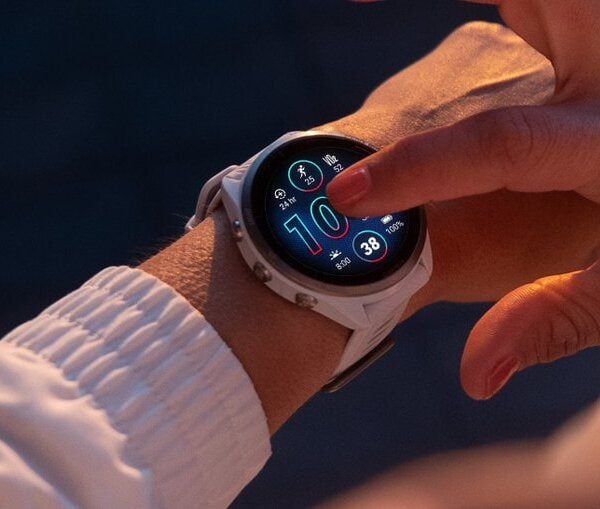
To change your watch face, hold down the UP button and select Watch face. Use the UP or DOWN buttons to preview the available options. Then press START to select an option. To activate the selected dial, select Apply. If you wish to modify the data displayed, select Data, and to change the shade color, choose Color shade.
Connect to Garmin Connect application
Once connected to Garmin Connect, the Garmin watch offers several key functions that are particularly useful for people interested in their daily tracking.
Business Management :
The Garmin watch tracks your daily activity level by recording the number of steps, floors climbed, calories burned and distance covered.
You can view this data directly on the watch screen, or in greater detail on the Garmin Connect application.
Sleep monitoring :
The sleep tracking function records the quality of your sleep, including total duration, light, deep and REM sleep phases, as well as nocturnal movements.
This information helps you understand your sleep cycles and optimize your rest for better recovery.
Activity modes :
Garmin offers a multitude of pre-programmed sports modes(running, cycling, swimming, hiking, etc.) adapted to different types of physical activity.
Each sport mode records specific metrics such as distance,pace, heart rate and other relevant statistics to track your performance.
Training plans :
Through Garmin Connect, you can download personalized training plans based on your sporting goals (improving your running, preparing for a marathon, etc.).
Training plans help you structure your workouts to effectively reach your fitness goals.
Body Battery: Measure your energy every day
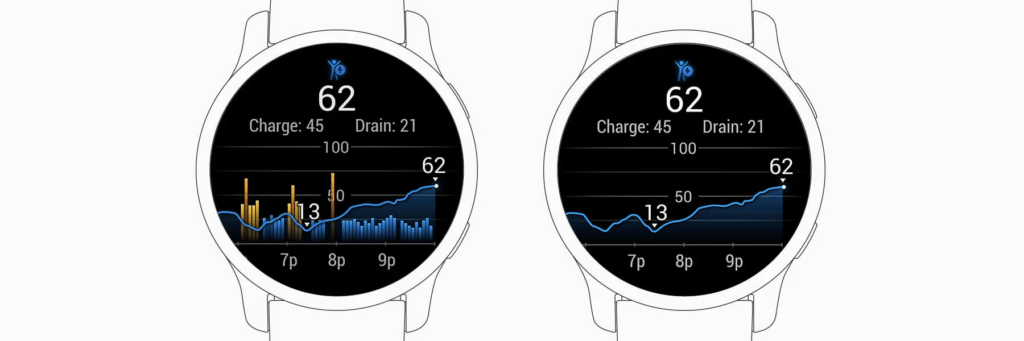
Body Battery is a feature of some Garmin watches that allows you to track your energy levels throughout the day. It uses data on your heart rate, activity and sleep to estimate your energy level.
Steps for using Body Battery :
Make sure the function is activated: In your watch settings, check that Body Battery tracking is activated.
Monitor your energy level: consult the Body Battery widget on your watch to see your energy level in real time, which ranges from 0 to 100.
Interpret the data: A high level means you’re rested and ready to be active, while a low level means it may be time to rest.
Adjust your activities: Use the information provided to plan your physical activities and rest periods to maximize your energy.
Garmin Coach: A personal trainer at your fingertips
Garmin Coach offers personalized training plans to help you reach your running goals, whether it’s a 5K or a marathon.
Access Garmin Coach :
Open the Garmin Connect application.
Go to the main menu (icon with three lines or “More”).
Select ” Training “, then ” Garmin Coach “.
Choose your race goal:
Select the distance you wish to prepare(5 km, 10 km, half-marathon).
Select a coach :
Choose one of our virtual trainers (Jeff Galloway, Greg McMillan, Amy Parkerson-Mitchell), each with a different approach to training.
Personalize your training plan:
Define your goals (such as running a distance in a given time).
Indicate your preferences, such as the frequency of training per week and your current level.
Synchronize with your Garmin watch :
Your training plan will be automatically transferred to your watch.
Your watch will guide you through every session, including runs, rest periods and warm-ups.
Keep track of your workouts:
Garmin Coach adjusts the sessions according to your progress. If a session is too easy or too difficult, the program modifies the subsequent workouts.
Check your statistics and performance after each session in the Garmin Connect application.
Progress to your race:
Your virtual coach accompanies you throughout the program, right up to the day of your race.
You’ll receive regular tips and notifications to keep you motivated.
Garmin Pay: Simplify your payments
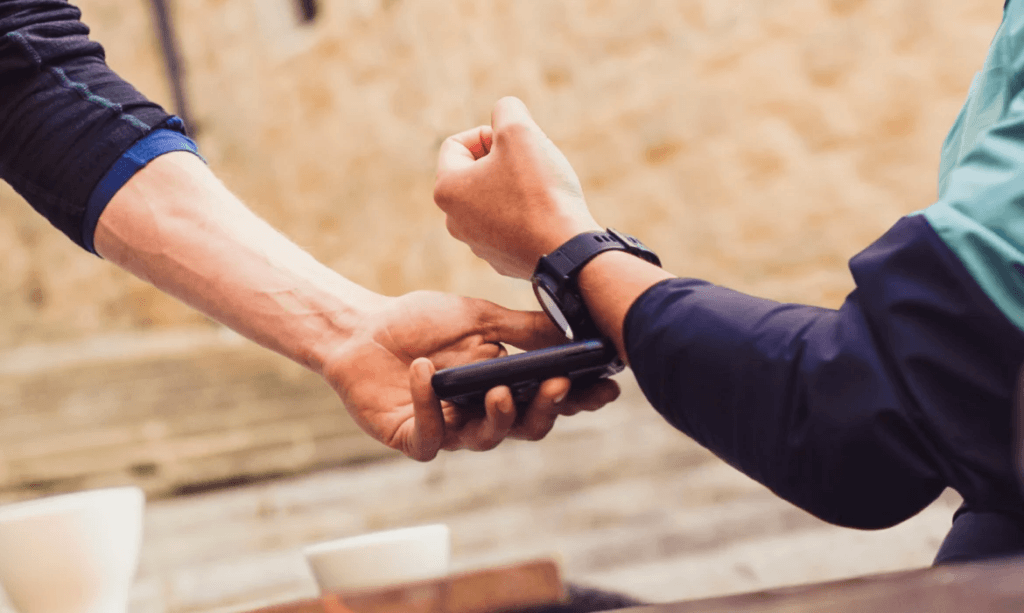
Garmin Pay lets you make contactless payments directly from your watch.
Add a credit card to Garmin Pay :
Open the Garmin Connect application.
Go to the main menu and select Garmin Pay.
Follow the steps below to set up your virtual wallet.
Select your bank and follow the instructions to add your credit card (make sure your bank is compatible with Garmin Pay).
Setting a PIN :
For security reasons, you will be asked to create a 4-digit PIN code when you set up Garmin Pay. This code must be entered each time you use the payment function, especially after removing your watch.
Using Garmin Pay to make a purchase :
When you’re ready to pay, press and hold the button on your watch until the Garmin Pay wallet appears on the screen.
Select the card you wish to use if you have more than one.
Bring the watch close to the contactless payment terminal(NFC) until the payment is validated.
Garmin LiveTrack: Share your activity in real time
Activate LiveTrack
In Garmin Connect, access the menu (three-line icon or “More” depending on the version of the application), select“Security and Tracking” and click on LiveTrack.
Configuring Live Track
After activating the LiveTrack option, under Session Name, you can customize the name of the LiveTrack session. By activating the Share automatically option, the LiveTrack option will start automatically at the beginning of each session/activity.
Your contacts can then follow your progress in real time, including data such as GPS position, speed and distance covered.
Garmin Maps and Itineraries: Explore new paths
Garmin watches’ map and route functions make it easy to navigate during outdoor activities such as hiking, biking or running. You can download preloaded maps and create personalized itineraries.
Steps for using maps and itineraries :
Download maps: Access the Garmin Connect or Garmin Express application to download maps suitable for your watch. This can include topographical maps, trails and bike paths.
Create a route: Use the Garmin Connect application or an online planning tool (such as Garmin Route Planner) to plot your route. You can choose starting and finishing points, as well as the trails you wish to take.
Synchronize your watch: Once you’ve created your route, synchronize it with your Garmin watch. This will enable you to use it during your activity.
Navigate your route: During your activity, open the navigation mode on your watch. Follow the itinerary and use the ” Return to start point ” function if necessary.
Garmin maps and routes make it easy to explore new places by providing accurate navigation and trail information, helping you make the most of your outdoor adventures.












Or
Or
Your data is processed and collected by Lepape, which acts as the data controller, in accordance with the French Data Protection Act and the RGPD. For more information on the processing of your personal data, you can consult our Privacy policy.